J-Cut and L-Cut Tutorial: Create Seamless Video Transitions
J-cut and l-cut tutorial – have you ever noticed how some videos flow effortlessly while others feel disjointed and abrupt? This simple editing approach can completely change how your audience experiences your content.
By mastering these basic video editing techniques, you’ll be able to create seamless transitions that guide viewers naturally from one scene to the next. Whether you’re editing dialogue, crafting a short film, or producing online content, the j-cut and l-cut tutorial is one of the fastest ways to make your videos more professional.
So, what makes these cuts so effective, and why do top editors rely on them in everything from Hollywood productions to YouTube vlogs? In this guide, we’ll break down exactly how they work, why they matter, and how you can start using them today to improve your storytelling flow.
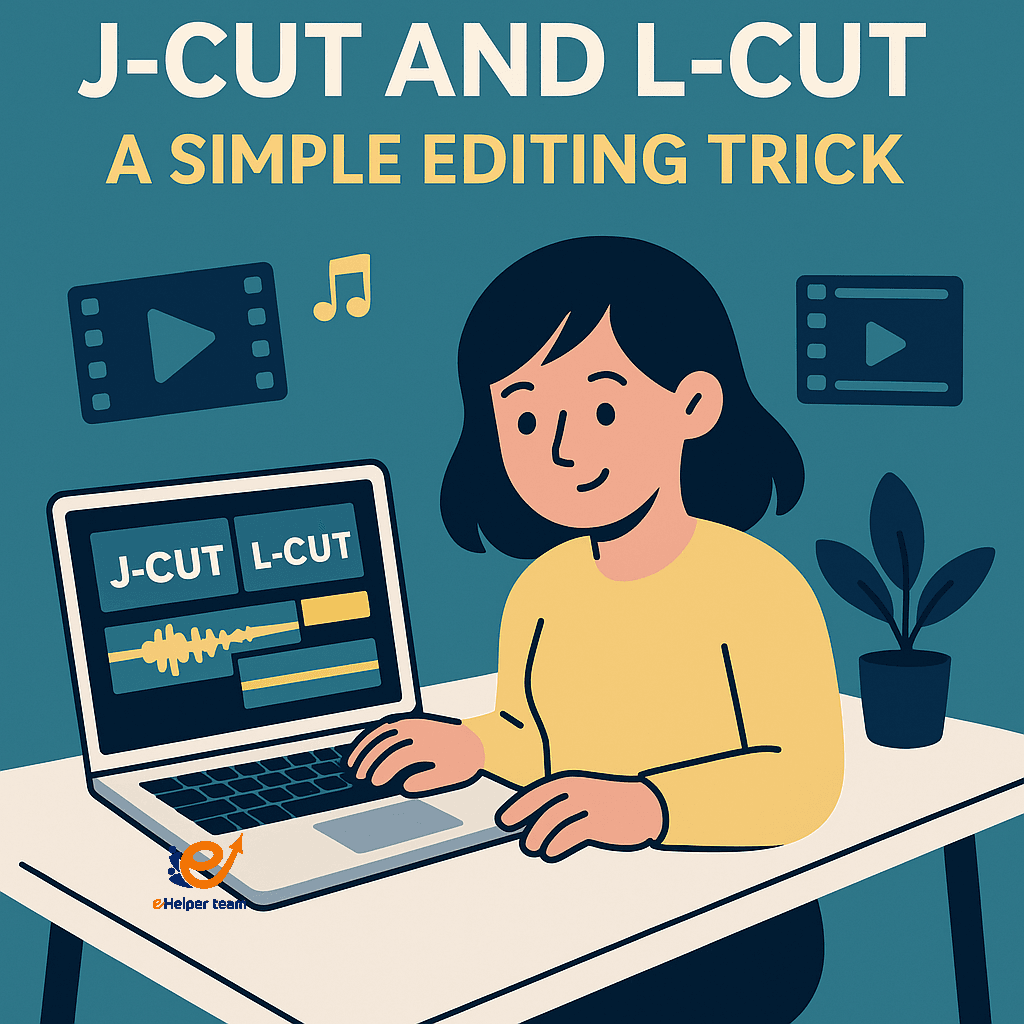


Understanding the J-Cut and L-Cut in Video Editing
1.What is a J-Cut?
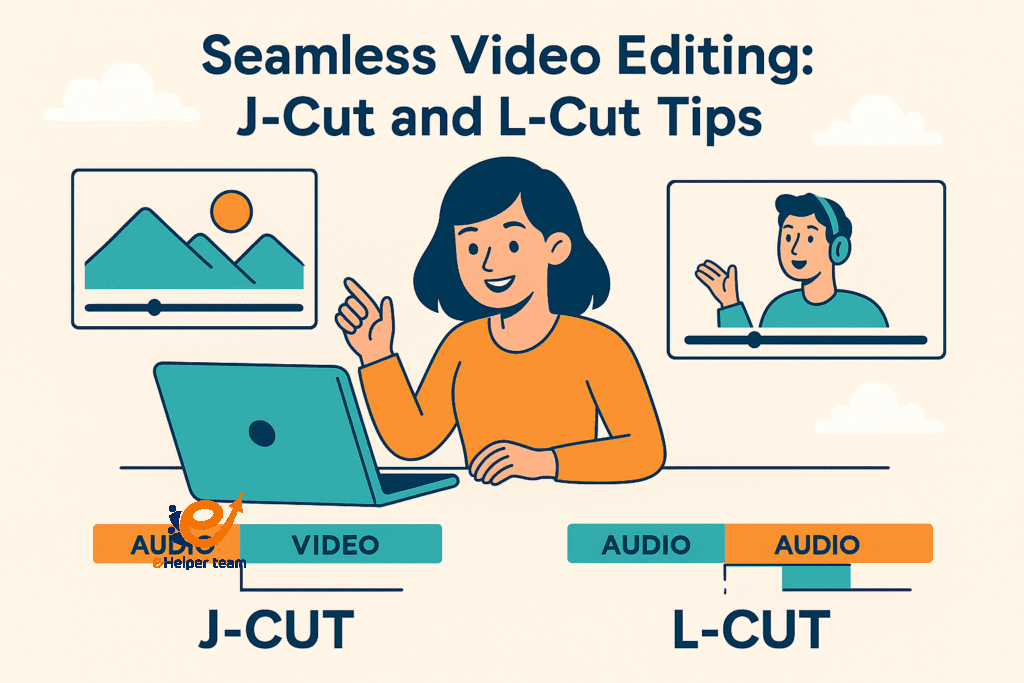
A J-cut is when the audio from the next scene starts before the current visual ends. This is often used in conversations to make them feel more dynamic. For example, while you still see one character talking, you might hear the next character start speaking. This gives the audience a head start on the emotional or informational shift.
2.What is an L-Cut?
An L-cut works in the opposite direction. The audio from the current scene continues into the start of the next visual. It’s often used to maintain emotional resonance or to smooth over location changes.
Why These Cuts Make Your Videos More Professional
1. Enhancing Storytelling Flow
The human brain is wired to follow audio cues as much as visual ones. These cuts align perfectly with natural conversation patterns, keeping viewers engaged without them even realizing an edit has happened.
2. Reducing Editing Fatigue
When you rely solely on hard cuts, the result can feel abrupt. With J-cuts and L-cuts, transitions become invisible, which helps maintain audience immersion.
Step-by-Step J-Cut and L-Cut Tutorial
1. Choose Your Clips – Identify the parts of your video where dialogue overlaps or where a location change needs to be smoothed out.
2. Separate Audio and Video Tracks – Most editing software allows you to unlink audio and video. This step is essential.
3. Shift the Audio – For a J-cut, drag the audio of the second clip earlier; for an L-cut, let the audio of the first clip run over into the second clip’s visuals.
4. Fine-Tune the Timing – Experiment with frame-by-frame adjustments until it feels natural.
5. Add Contextual Elements – Background sounds or ambient noise can make the transition feel even smoother.
Tools You Can Use for J-Cuts and L-Cuts
1.Beginner-Friendly Software
If you’re just getting started, free tools like DaVinci Resolve or Shotcut make it easy to experiment without a large investment. For mobile editing, options from the best free video editing apps list are excellent choices.
2.Professional Suites
Adobe Premiere Pro, Final Cut Pro, and Avid Media Composer are industry standards, offering precise control over both audio and visual elements.
Combining J-Cuts and L-Cuts with Other Basic Video Editing Techniques
Adding B-Roll for Context
Overlaying B-roll footage during a J-cut or L-cut can enhance storytelling. This can include establishing shots, reaction shots, or detail shots that add depth.
Using Transitions Strategically
While these cuts are powerful, they can be combined with fades, dissolves, or other transitions when a creative or emotional cue calls for it.
A Real-World Example – From Interview to Narrative
Imagine editing an interview for a documentary. You start with the interviewee answering a question, then cut to B-roll footage of the location while their voice continues (L-cut). Later, as we see this footage, we hear the interviewer ask the next question before we see them (J-cut). This technique not only creates a smooth flow but also keeps the viewer visually stimulated.
For more tips on building the right environment for professional shooting, see this budget YouTube studio setup guide.
Mistakes to Avoid in a J-Cut and L-Cut Tutorial
Overusing the Technique – Too many overlapping audio cuts can feel disorienting.
Poor Audio Quality – No matter how good the edit, bad audio will ruin it.
Ignoring Emotional Cues – Match the cut style to the tone of the conversation or scene.
Advanced Applications for Seamless Transitions
1.Music and Sound Design
Adding music that spans across cuts can make the edit even less noticeable and more emotionally impactful.
2. Multi-Camera Editing
When editing footage from multiple cameras, J-cuts and L-cuts help unify different angles into a single, cohesive conversation.
If you want to make your videos stand out, mastering the J-cut and L-cut is non-negotiable. It’s one of the simplest ways to make editing more natural, storytelling more engaging, and your work look professional. For creators looking to optimize even short content formats, check out the 7-second video formula guide.
Detailed Comparison – J-Cut vs L-Cut
| Feature | J-Cut | L-Cut |
|---|---|---|
| Audio Start Timing | Audio starts before the visual change | Audio continues after the visual change |
| Primary Purpose | Creates anticipation for next scene | Extends emotional impact of current scene |
| Best For | Dialogue transitions, interviews, narrative builds | Emotional storytelling, scene continuity |
| Common in | Trailers, action films, vlogs | Documentaries, dramas, emotional interviews |
| Editing Approach | Shift next clip’s audio earlier | Extend current clip’s audio into next clip |
Integrating with Other Video Enhancements
1. Green Screen Backgrounds
If you’re producing explainer videos or presentations, green screen setups can make your background dynamic and tailored to your topic. Paired with J-cuts and L-cuts, the transitions between live footage and green screen scenes can feel fluid. Here’s a full green screen setup guide that’s beginner-friendly.
Thumbnail Optimization
Even the smoothest video edit won’t attract views without a strong first impression. A high-CTR thumbnail makes people click, giving your editing work the attention it deserves. Learn how to create thumbnails that convert with this Canva thumbnail design guide.
Professional Tips for Perfecting J-Cuts and L-Cuts
Listen, Don’t Just Watch – Close your eyes and play your sequence. Does the timing feel natural purely through audio?
Use Markers in Your Timeline – Mark the beats where dialogue shifts or emotional changes happen.
Layer Ambient Sound – Add subtle background noises so cuts feel invisible.
Match Audio Levels – Keep consistent volume so the transition isn’t jarring.
Plan Ahead While Shooting – Direct interviews or scenes with overlapping audio in mind.
When NOT to Use J-Cuts and L-Cuts
While these cuts are powerful, there are times they can harm pacing:
Fast-Paced Action Scenes – Hard cuts often suit the urgency better.
Complex Audio Environments – If there’s too much background noise, overlapping can sound messy.
Strict Synchronization Needs – For example, musical performances require precise audio-visual alignment.
Advanced Layering – Combining Multiple Audio Tracks
One of the most sophisticated uses of these cuts is in multi-layered sound design. Imagine an L-cut where the main dialogue continues but subtle background sounds from the next scene fade in underneath. This dual layering creates a subconscious bridge between scenes, enhancing immersion.
Professionals often blend ambient sound, foley effects, and music beds to smooth cuts even further. To understand why this works, it helps to study film sound theory from trusted film editing references like this one.
Frequently Asked Questions
Q1: Are J-cuts and L-cuts hard to learn for beginners?
Not at all. With practice and the right software, most beginners can master them within a few editing sessions.
Q2: Can I use J-cuts and L-cuts in social media videos?
Yes, they work perfectly for platforms like YouTube, TikTok, and Instagram.
Q3: Which editing software is best for J-cuts and L-cuts?
Professional editors often use Adobe Premiere Pro or Final Cut Pro, but free software like DaVinci Resolve works too.
Q4: Do these cuts work for non-dialogue videos?
Absolutely. They can be used for music videos, documentaries, and any content needing smooth transitions.
Q5: How do I ensure my cuts are seamless?
Pay attention to background audio and ensure volume levels are consistent across cuts.
Final Thoughts
The j-cut and l-cut tutorial you’ve just explored isn’t just a technical skill—it’s a storytelling art. Whether you’re an indie filmmaker, a YouTube creator, or a corporate videographer, these techniques will lift your work to a more polished, professional level.
If you want to take your short-form content to the next stage, study timing patterns like those in the 7-second video formula, Combining strong timing with smooth editing creates videos that keep audiences watching until the end.


